
Training that fits the machine on your floor
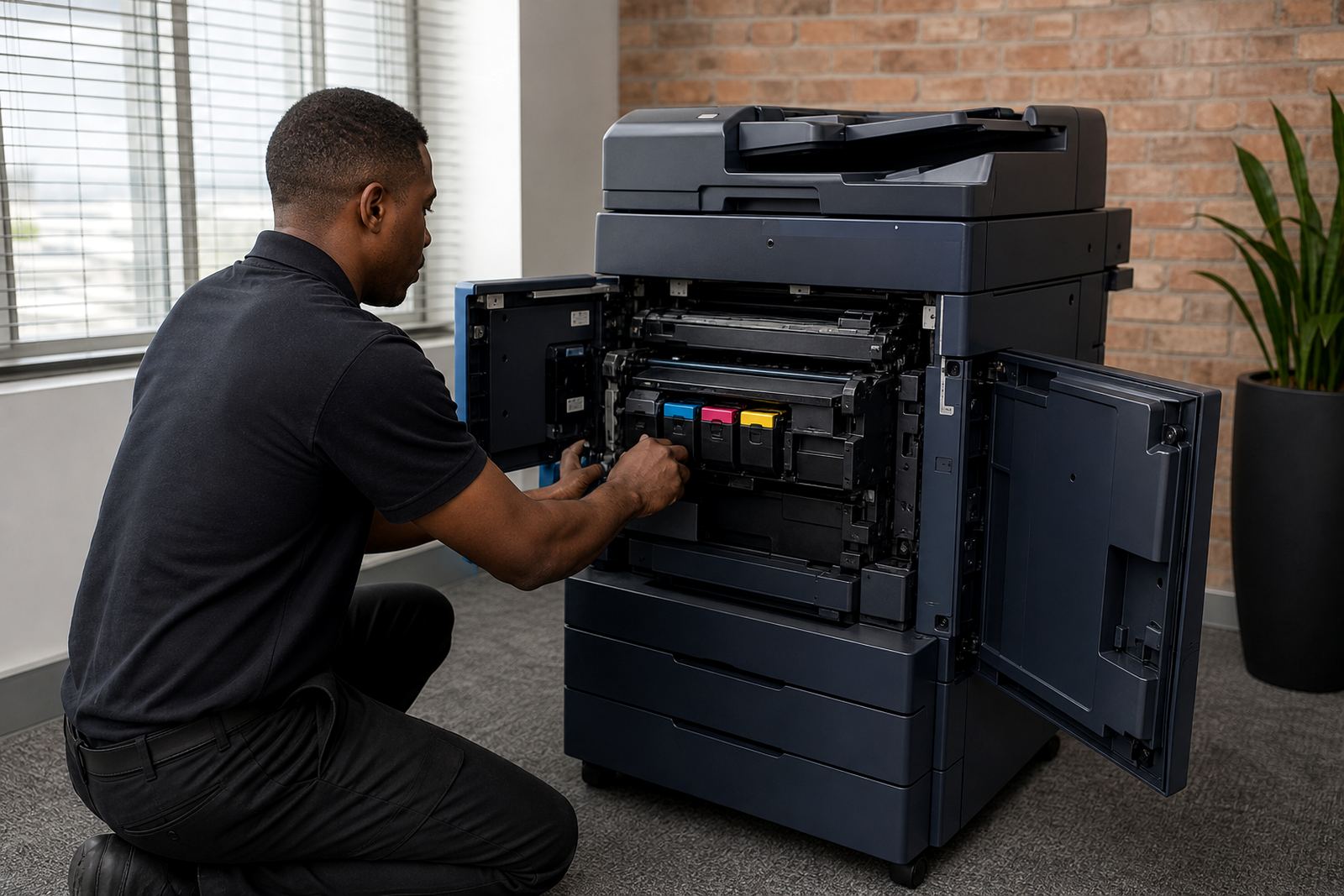
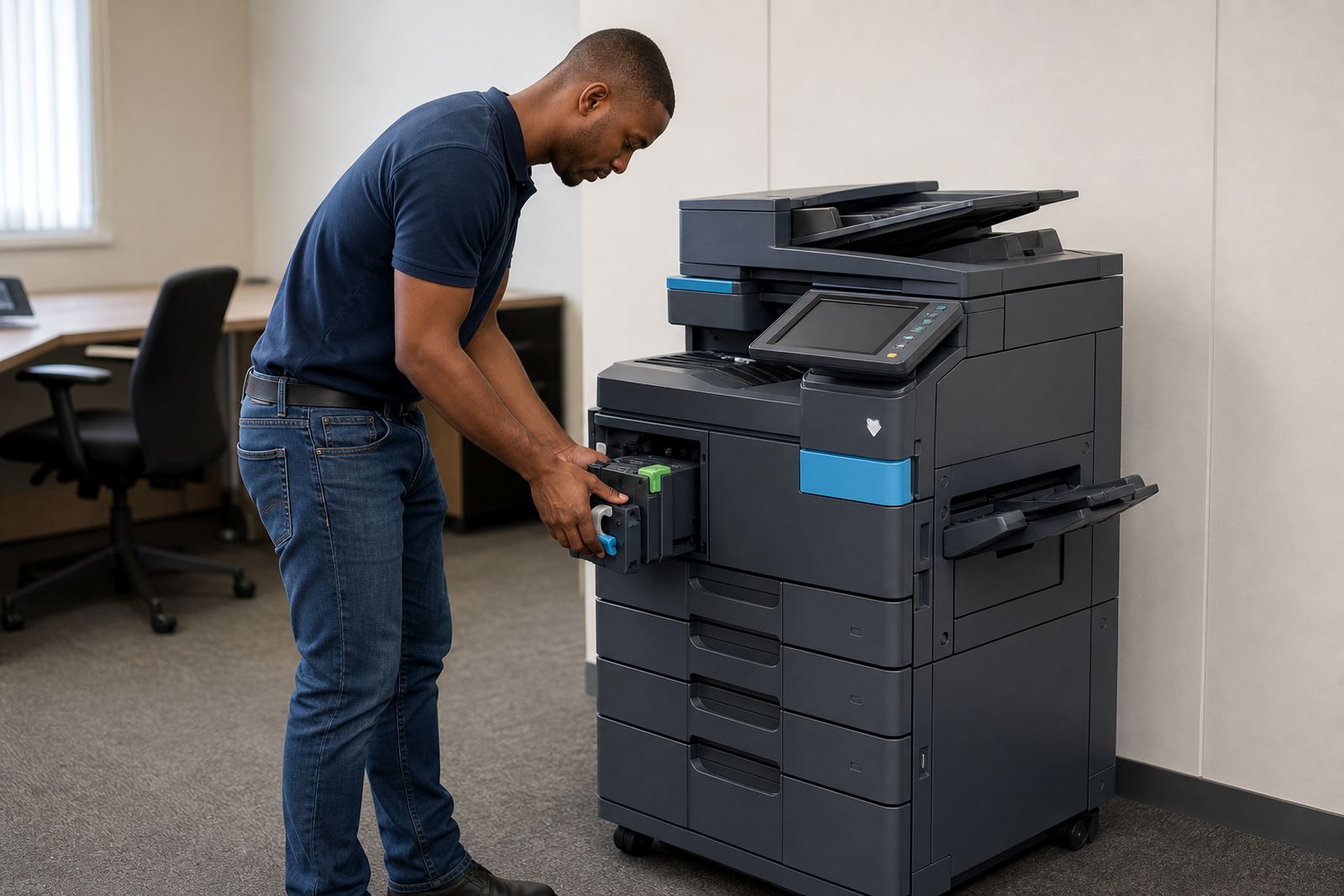
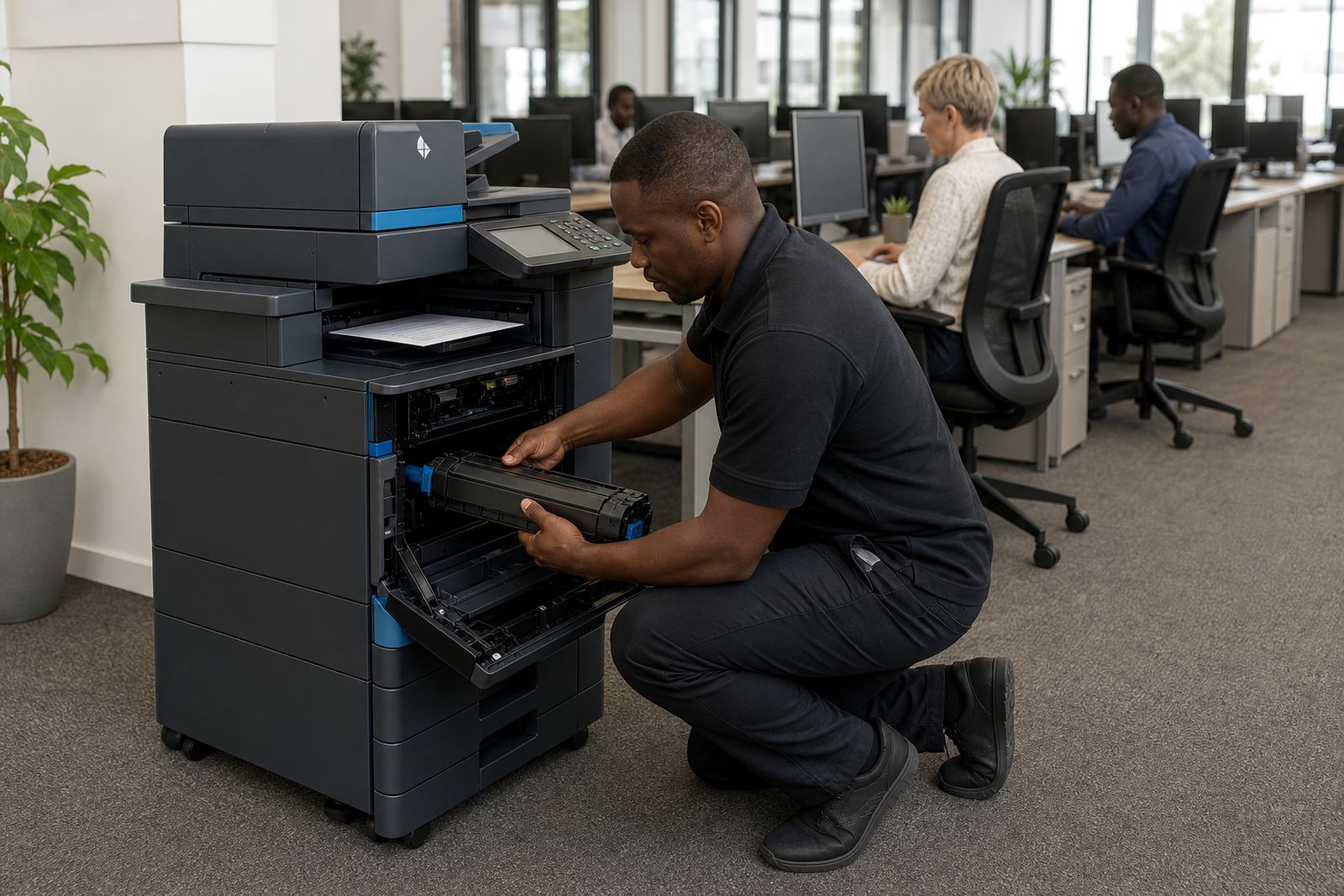
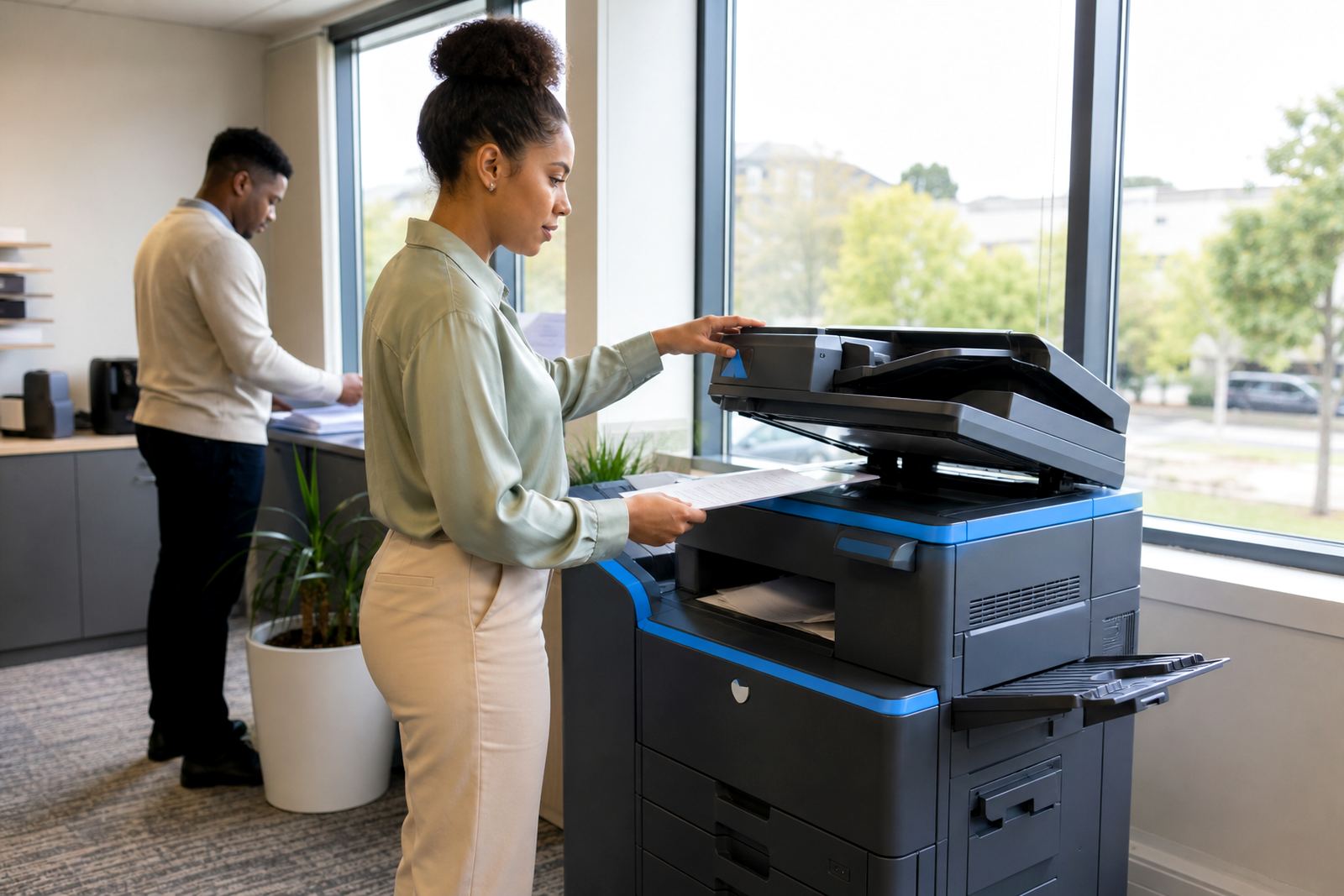
User training works best when it matches the actual device in the office, not a generic manual. We cover the controls people touch most often, from copy settings and paper trays to scan destinations and secure print release, so staff can work with fewer stops at the machine.
The session can be shaped around your team size and the mix of users in the office. A front line receptionist, accounts clerk and manager do not need the same level of detail, so we keep the guidance practical and tied to the way your office runs each day.
What we cover in a refresher session
Refresher guidance usually focuses on the actions that cause delays when a team is new to the machine or when staff have changed. We walk through the controls and the common choices that affect output, file handling and print control.
- Copying single pages, double sided sets and mixed originals
- Scanning to message, shared folders or a saved destination
- Using secure print and releasing jobs at the machine
- Checking paper size, tray selection and staple or sort settings where fitted
- Reading toner and paper alerts, then knowing what to do next
A sensible way to train a mixed office
Some teams prefer a short group session at the machine, while others need one or two people trained more fully so they can help the rest of the office. We can work through the daily steps first, then move into the functions that support more careful document handling.
If your office uses both A4 and A3 devices, the training can cover the differences between the machines, including where users should place originals and how to choose the correct paper path. That helps reduce misfeeds and wasted prints, which matters in busy offices where the machine is used all day.
Secure print and scan-to-message made usable
Secure print is useful when a document contains private or sensitive information and should not sit in the output tray. We explain how users send the job, how they release it at the panel and what to do if a print is sent to the wrong queue.
Scan to message is another feature that often trips up new users. We show where to enter the destination, how to confirm the subject line or file type when the device allows it, and how to check the scan setting before sending a set of pages.
- Confirm the right mailbox or destination before scanning
- Choose black and white or colour where the machine offers it
- Set file type and page size so the scan is readable
- Use secure print when documents must stay private
When the office changes, the training should change too
A new staff member, a relocated machine or a fresh print policy can all change the way users handle the device. If the copier has been moved between offices in Midrand, Sandton or Centurion, we can go through the setup points that often shift after relocation, including network access, default trays and scan destinations.
Where a team has grown, it helps to revisit who can print in colour, who uses a shared tray and who needs help with metre reading support. Small changes at the machine can prevent a long queue at reception and save unnecessary calls to the office manager.
How to request the session
Send the details through our contact form on our contact page and mention the machine type, the office location and the main tasks your users need help with. If there are several branches, list the sites that need attention so the training can be arranged around the right people and the right device.
It also helps to note whether the session is for a new install, a user handover, an end term swap or a general refresher on day to day use. That gives us a clearer picture of the functions to cover and the time needed with your team.
- Office location and branch name
- Machine count and whether the devices are A4 or A3
- Main tasks, such as copy, scan or secure print
- Any recent move, swap or change in staff