
Paper paths take more punishment than the cabinet shows
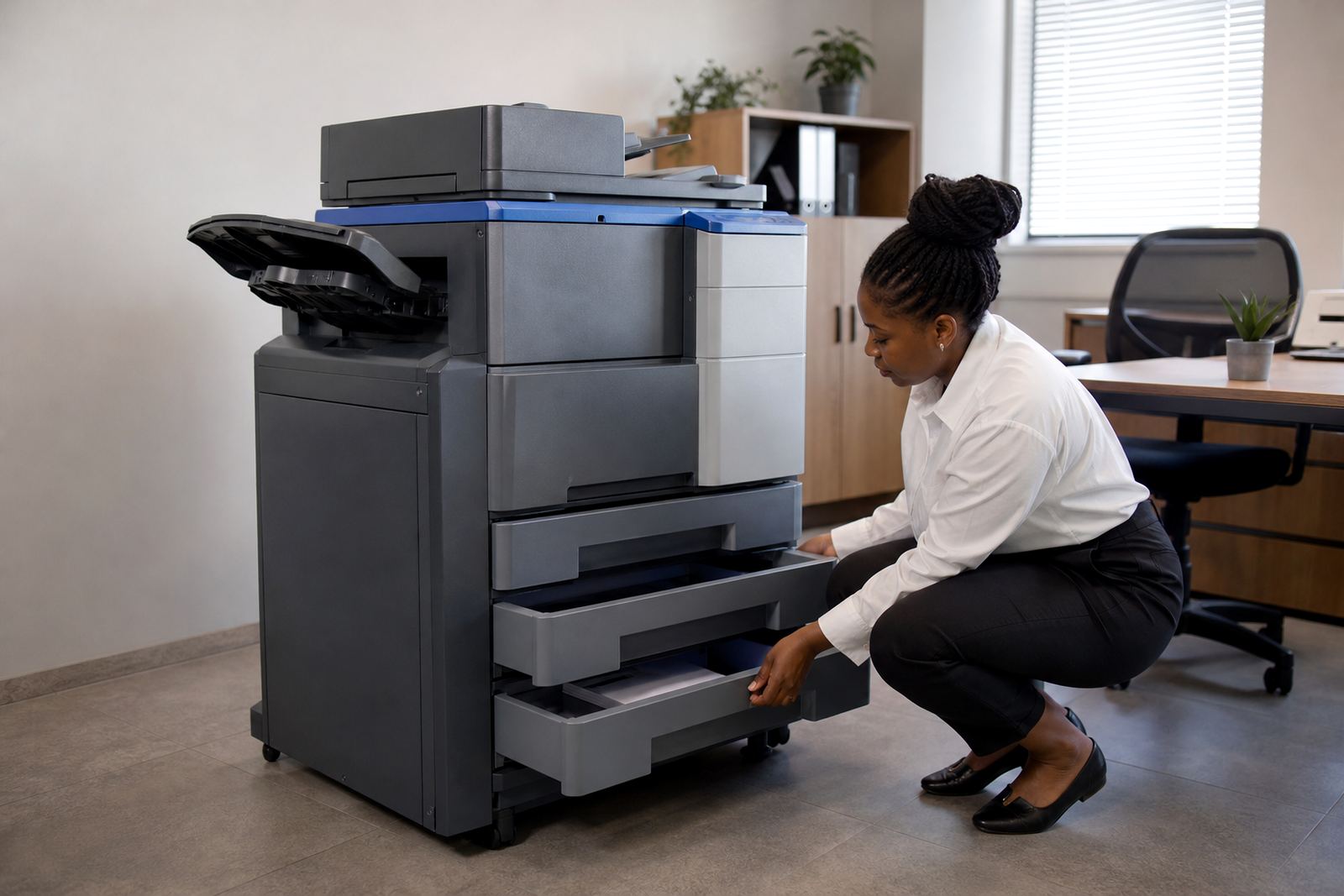
A rented multifunction machine can look tidy from the outside while the paper path is fighting the office every morning. The usual culprits are misfeeds, double feeds, skewed pages and a tray that has not been set correctly for the paper size in use. On A4 machines it is often a plain setting issue. On A3 units the problem may sit with the tray guides, worn rollers or paper stored in damp rooms near coastal air.
In Halfway House and the wider Midrand area, we see this after a move, a staff reshuffle or a tray being used for the wrong stock. Glossy paper in a tray set for bond sheets, or a mix of letterhead and plain paper in one stack, can throw the feed off fast. A tech will normally check the rollers, sensors, tray alignment and the paper profile on the panel before replacing parts.
- Paper size mismatch in the tray
- Worn feed rollers or separation pads
- Stickers, staples or torn corners in the ream
- Humidity-warped paper stored against a wall
Small changes make a difference. Keeping one paper type per tray and storing reams flat, dry and sealed saves the machine from a lot of grief.
Scan-to-message usually fails for ordinary office reasons
Scan-to-message is one of the most useful features on a managed print plan, but it is also one of the first to be blamed when staff cannot find the scanned file. Many faults are not hardware faults at all. The machine may have the wrong address book entry, a blocked login, a wrong server setting or a file size that is too large for the chosen destination.
Techs spend a fair bit of time checking the scan profile, file format and network path. In practices and schools, the issue can be as basic as a user selecting the wrong folder or sending colour scans when mono would be better. For offices that scan batches of invoices or forms, a technician may set a clearer destination list and tidy the panel labels so users do not have to guess.
- Wrong scan destination or address book entry
- Login or authentication settings out of step
- File size too large for the mailbox or folder
- Poor naming rules, so files are hard to find
A clean scan setup saves admin time and stops the machine being blamed for a workflow problem. The device does the same job better when the settings match the people using it.
Metre readings tell the real story on a rental plan
Metre-based billing only works when the readings are accurate and regular. A technician or service coordinator will often be checking whether the counter has rolled over, whether the right device is reporting, or whether a swap in the fleet has left the office with two machines showing the same job. That matters when monthly rental and click charges are linked to actual usage.
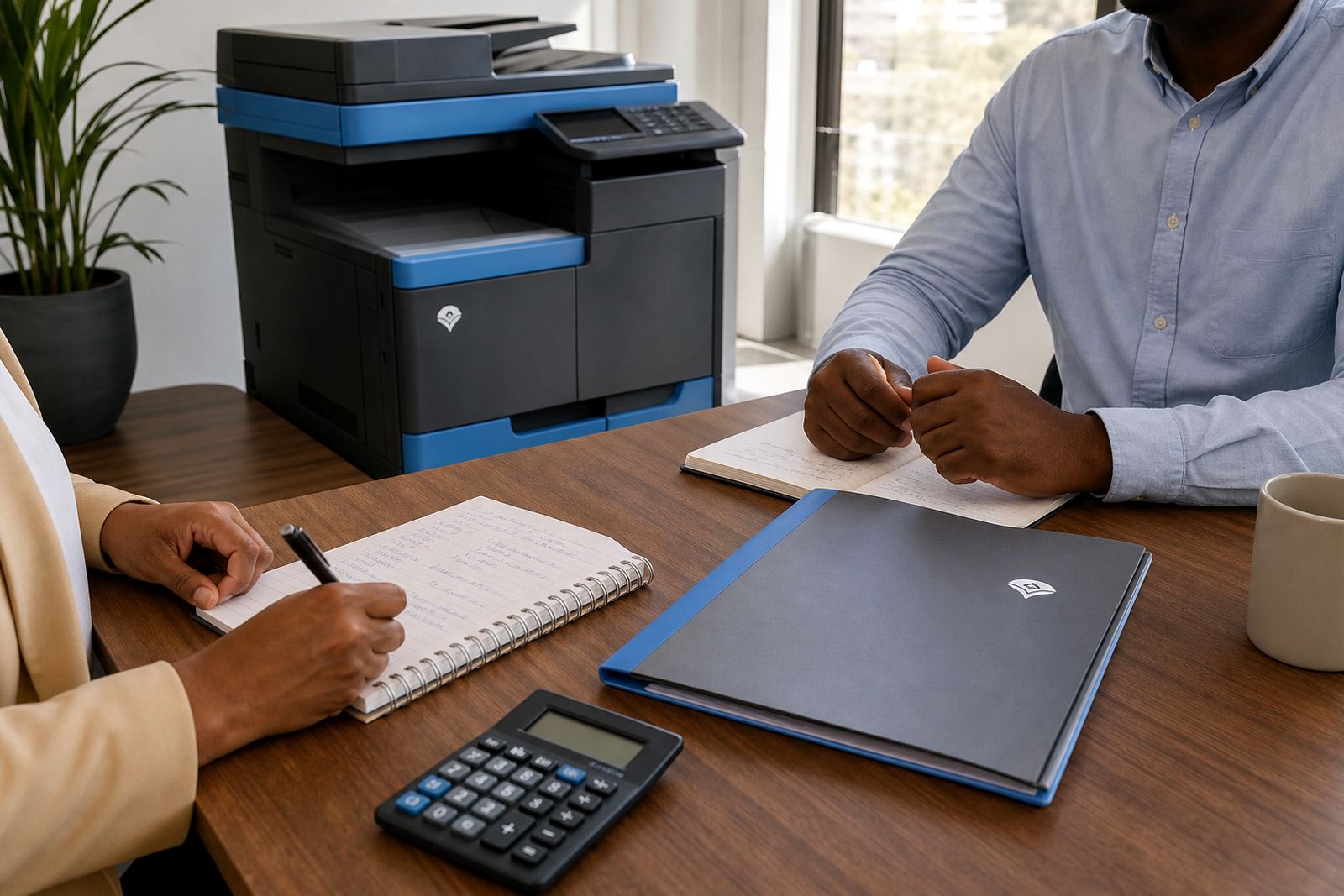
On a long-term hire, the metre also tells you how the office uses the machine. A black-and-white heavy user may not need the same colour allowance as a design team, while a branch office may be paying for a bigger machine than the workload justifies. The fix is not always mechanical. Sometimes the answer is a cleaner fleet split, a different device size or a fresh reading method.
- Counter not syncing with the agreement
- Wrong device recorded against the site
- Overuse on colour jobs where mono would do
- Underused machine taking up too much floor space
That is why fleet review visits matter. A reading is not only an invoice number, it is a clue about how the office is really using the equipment.
Secure print and user access need a tidy setup
Secure print is meant to keep private documents in the right hands, but the feature only works well when the logins, cards or PINs are set up properly. In busy offices the tech often finds old user codes still active, shared accounts that no one owns, or a device menu that has become cluttered after too many changes. When that happens, people stop using secure print and the machine becomes a queue at the tray.
For legal practices, medical rooms and finance teams, the point is control as much as privacy. A technician will usually check the access method, clean up the user list and test whether jobs release cleanly. If the machine is on a network with several departments, the settings may need a proper handover so each team knows how to release work without asking around the office.
- Old PINs still active on the device
- Cards or codes not linked to the right user
- Shared login habits that defeat the feature
- Confusing menu layout after changes
When secure print is set correctly, the office gets less clutter at the machine and fewer documents left sitting in the tray.
Network setup problems show up as printing problems
People often describe a network issue as a printer fault because that is where they see it. In truth, the machine may be installed correctly but not talking properly to the office network. A technician will check IP settings, driver mapping, print queues and whether the device can be seen by the right users. On larger sites, one wrong setting can affect several floors or departments.
In Sandton offices and Pretoria branches, the work can involve more than one device sharing the same print habits. If the copier is being used for A4 reports, A3 drawings and scan jobs all day, the network setup has to support that traffic cleanly. A good fix is part technical and part housekeeping. Clean the queues, rename the devices clearly and make sure the staff know which machine does which job.
- Driver mismatch on office computers
- Static network details entered wrongly
- Print queue stuck with old jobs
- Device names too vague for busy teams
Once the network side is stable, everyday printing becomes less of a guessing game. The office wastes less time walking between floors to find the right machine.
When a machine needs parts, service or a changeover
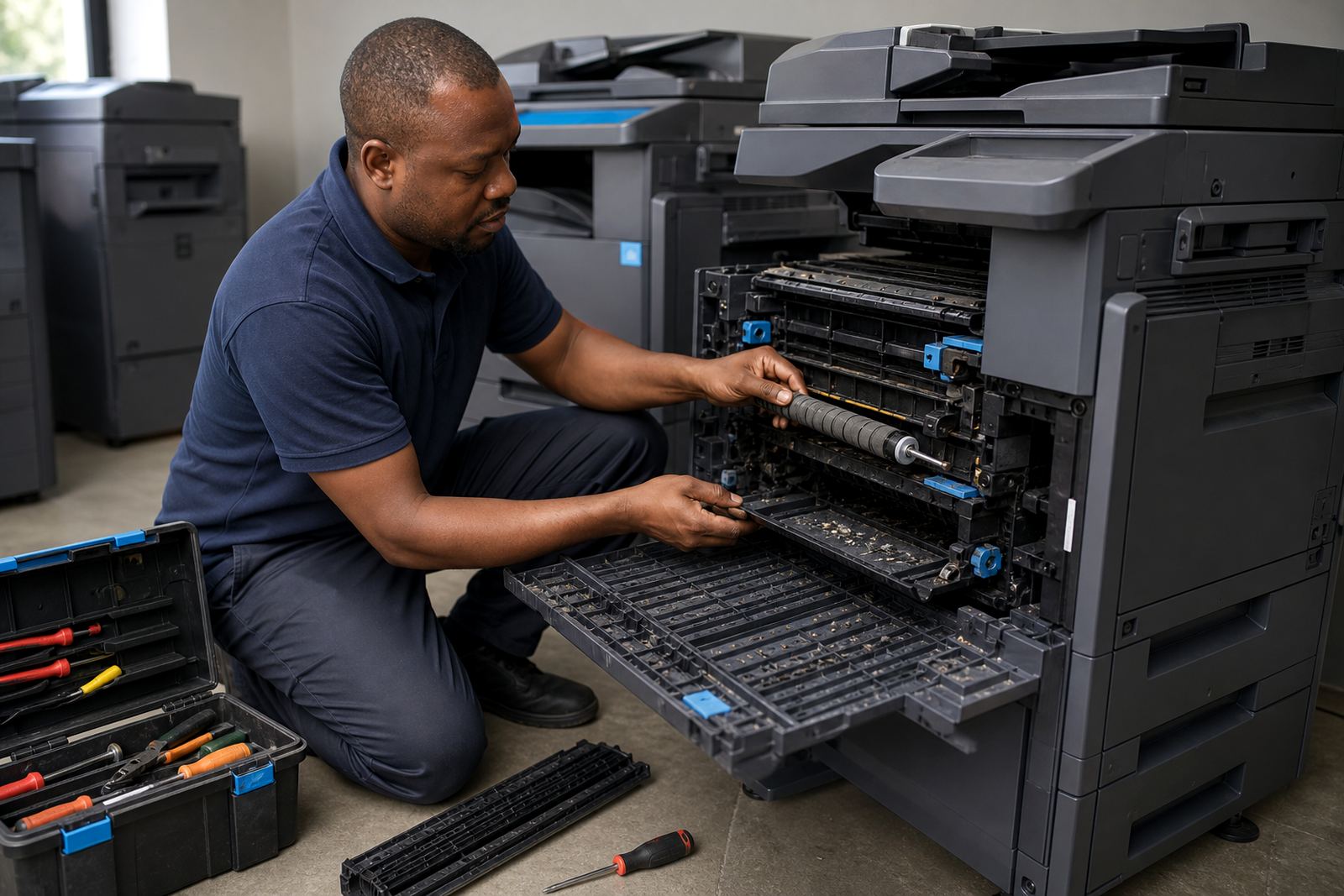
Some call-outs are about service rather than settings. Worn rollers, tired drums, fusing issues, noisy trays and repeated jams can mean the machine is at the point where parts replacement or an end-term swap makes more sense than patching the same fault again. On managed print plans, the technician’s job is to keep the device useful for the office, not keep it limping along for the sake of it.
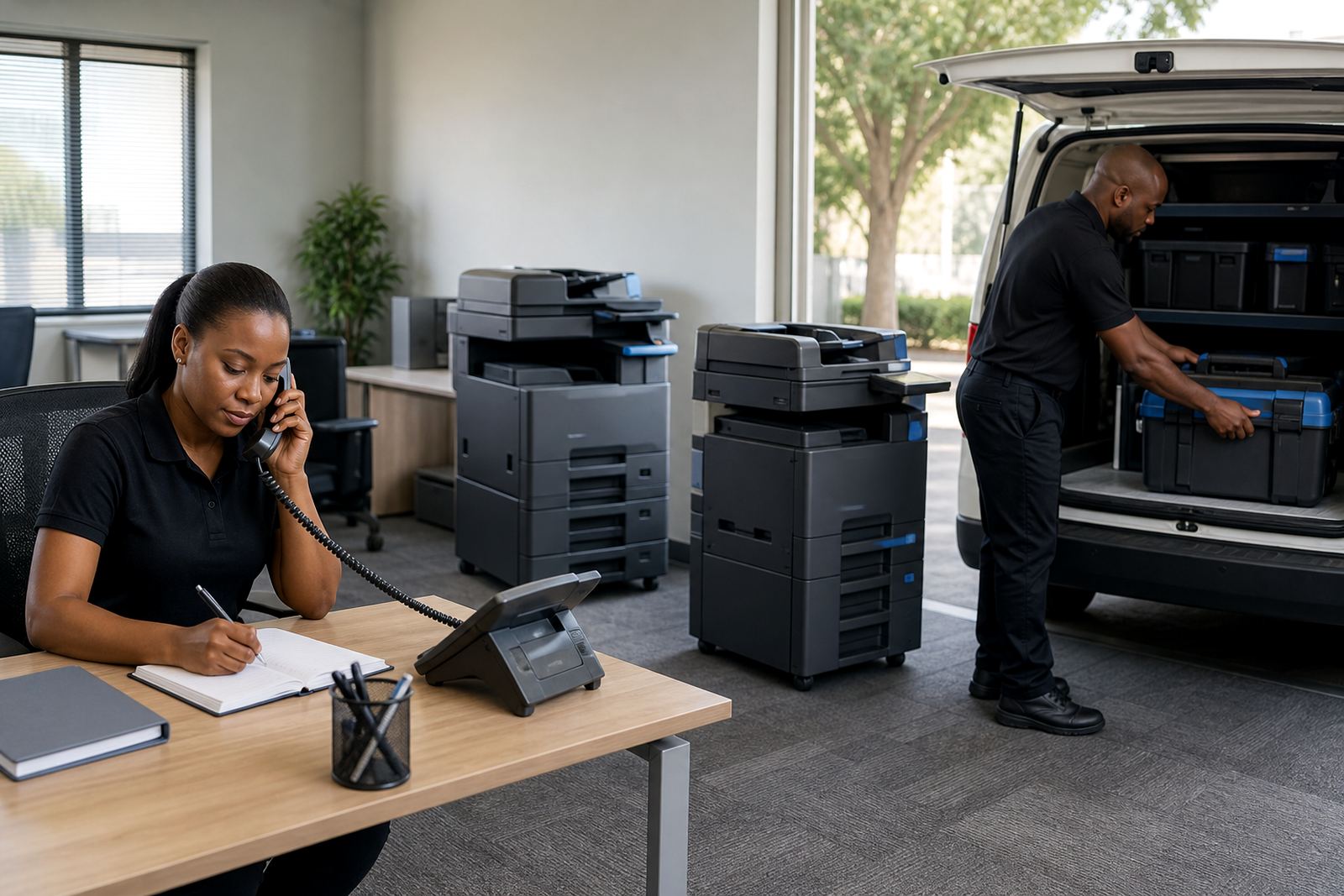
That is where on-site servicing, breakdown response and machine relocation work together. A team moving from one office to another may need the copier unplugged, transported and set up cleanly at the new address. Another team may need a user handover so the reception staff, accounts team and managers know the basics without overloading one person with all the questions.
- Repeated jams in the same paper path
- Noise, heat or fusing issues returning often
- Parts that no longer hold alignment well
- Relocation or end-term swap needed for the site
In Bloemfontein or Durban, the principle is the same. A copier is either worth keeping in service or it is due for a cleaner changeover. A technician should be looking at the whole site, not only the fault code.