When a paper trail needs to move faster than the filing cabinet
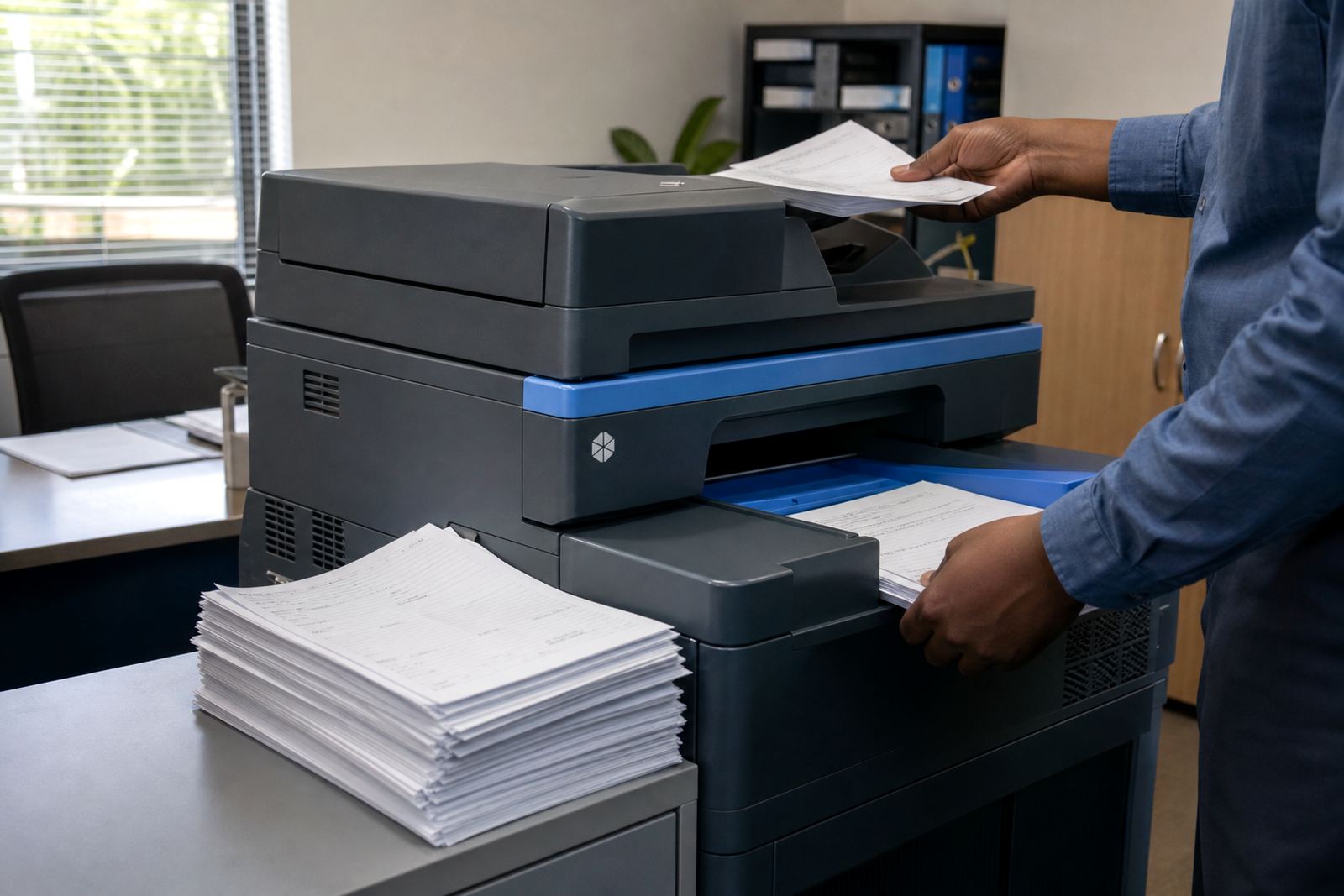
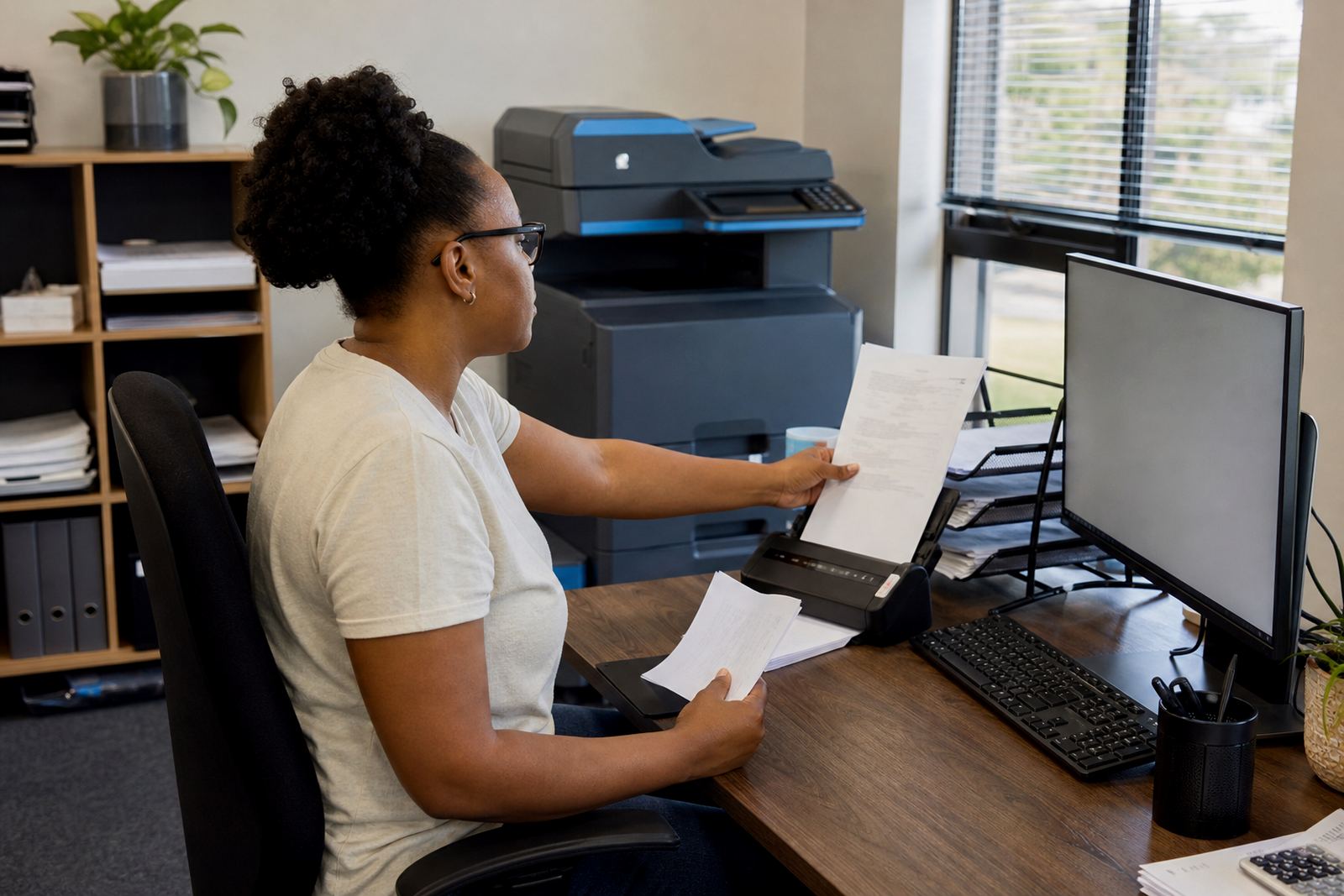
Scan to message fits into the ordinary rhythm of an office where paper still arrives every day. A signed delivery note, an HR form or a patient record can be scanned at the device and sent to a named address, which keeps the document moving without waiting for someone to photocopy, sort and walk it across the building.
In Midrand and Sandton, many offices use this function to reduce the clutter around reception and admin tables. In Pretoria or Bloemfontein, where teams may share one multifunction machine across several users, scan to message also cuts down on duplicate copies and missing pages. It is a practical tool, not a fancy extra, and it works best when the team knows which file names, folders and recipients are meant for which task.
- Good for invoices, HR forms, signed quotes and patient intake sheets
- Useful where several staff members share one A4 or A3 device
- Helps keep records moving without piles of photocopies
- Fits office, school and practice environments with regular paper handling
What the device must do before the scan leaves the tray
For scan to message to work well, the machine needs the right network setup, the correct message settings and a user path that staff can follow without guesswork. A multifunction printer can have the best scan button in the world, but if the address book is untidy or the file format is wrong, the office still loses time.
We set up office printers so the scan function sends documents in a usable form, whether the team needs PDF, TIFF or another common format. Some offices want colour scans for contracts or stamped forms, while others only need mono for internal records. The machine can also be set to use secure print for sensitive pages, so the scan and print habits sit neatly together on one device.
- Network setup should match the office structure and user permissions
- Message destinations need to be named clearly for admin staff
- File type and resolution should suit the record being captured
- Security settings matter where personal or confidential papers are involved
The small habits that keep scanned files readable
The scan itself is only part of the job. A blurred file or a page that has been cut off at the edge can create more admin than the original paper. Staff need a few simple habits: place the page correctly, check the preview if the machine offers one, and make sure the document feeder is clean before a batch of pages goes through.
On shared fleets, we also see problems caused by loose naming. If every user sends scans to the same inbox with the same subject line, the office spends longer finding the right document than it did scanning it. Better practice is to agree on short file names and a proper destination for each type of record. That way the printer is doing useful work, not creating another sorting job.
- Keep the glass clean for identity documents and single pages
- Check paper size before scanning A4 and A3 documents
- Use the feeder for batches, but only when the pages are straight
- Agree on file names that mean something to the accounts or admin team
Where scan to message helps across South African offices
In a Johannesburg accounts office, the scan function often supports supplier paperwork and month end admin. In a Pretoria practice, it can move referral letters or consent forms to the right person without a courier run across town. Durban offices with coastal humidity often need their machines kept clean and serviced so the feeder and rollers stay reliable, especially where paper sits in a warm room for long periods.
Schools use scan to send us a message for parent letters, consent forms and learner records that need to be shared internally. Cape Town branches often want the same function linked to a smaller team, with fewer steps between the front office and the back office. The point is not the city on the door, but the type of paper flow inside the business.
- Office admin teams use it for invoices and filing
- Practices use it for forms, referrals and patient records
- Schools use it for notices, permissions and learner administration
- Branches use it to reduce handovers between people and rooms
How rental plans support the scan function over time
With a managed print plan, the scan to message feature sits inside the same service structure as toner supply, metre readings and on-site servicing. That matters because a device that is fine for printing can still need attention on the scanner side, whether the issue is a feeder roller, a network setting or a user account that no longer matches the office list.
Monthly rental and click charges make more sense when the whole machine is covered as part of the arrangement. Offices do not just want pages coming out, they want the full workflow to stay steady. If a team relocates, needs a machine swap at the end of term or adds a new branch in Centurion or Sandton, the scan setup can be adjusted as part of the move.
- Managed plans keep toner and service tied to actual usage
- Metre-based billing matches the way office fleets are monitored
- End-term swaps can preserve the same scan habits on a new device
- Relocations call for the address book and network settings to be checked once more
A Midrand office example with ordinary paperwork and a busy front counter
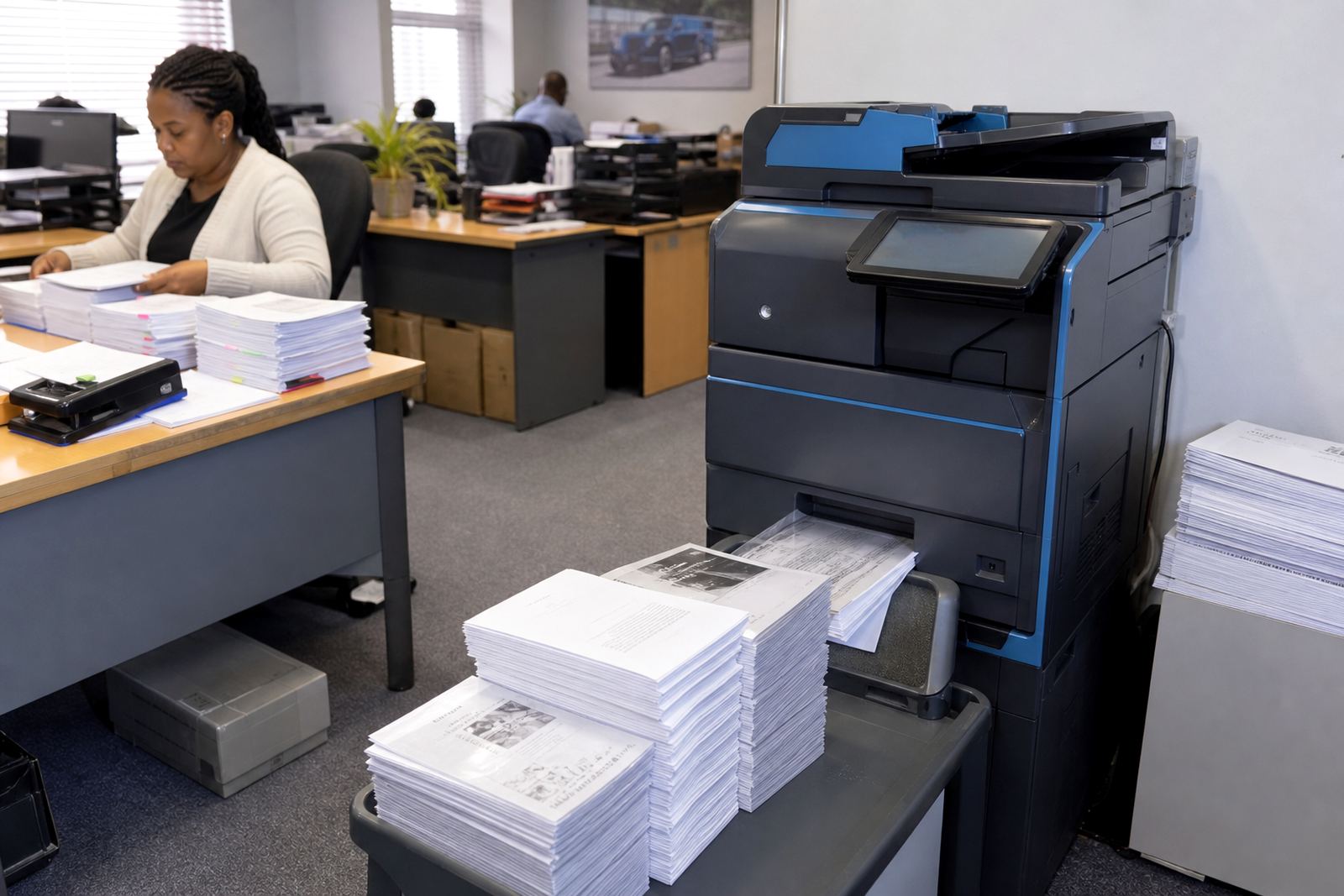
A Midrand office handling supplier invoices, signed delivery notes and staff records may only need one or two machines, but the scan function becomes central as soon as the front counter starts filling with paper. The reception team scans a document to the accounts inbox, the operations person saves a signed form to the right file, and the manager keeps a digital copy for reference. Nothing dramatic, just a clean way of keeping the work moving.
That is where device installation, user handover and a proper scan-to-message setup earn their place. If the team knows where to press, which address to use and how to handle confidential pages, the machine becomes part of the office routine instead of another item that only one person understands. In a busy week, that difference saves more than a few trips to the printer room.
Questions that help before the setting is changed
Before a scan profile is configured or corrected, it helps to know how the office uses paper in real life. A clinic in Bloemfontein will handle sensitive records differently from a sales branch in Johannesburg, and a school office will want a different structure again. The device can do a lot, but the workflow still needs a human decision behind it.
- Who sends the most scans, and where should they go?
- Do the files need to be searchable or just readable?
- Should the office keep colour scans for only certain documents?
- Will the same device also handle secure print and copying?
These questions shape the setup more than the model number does. Once the route is clear, the office can use the machine with less back-and-forth and fewer misplaced papers. That is often the real value of scan to message, especially where the team shares one printer and every page matters.