
A five minute look before the call goes in
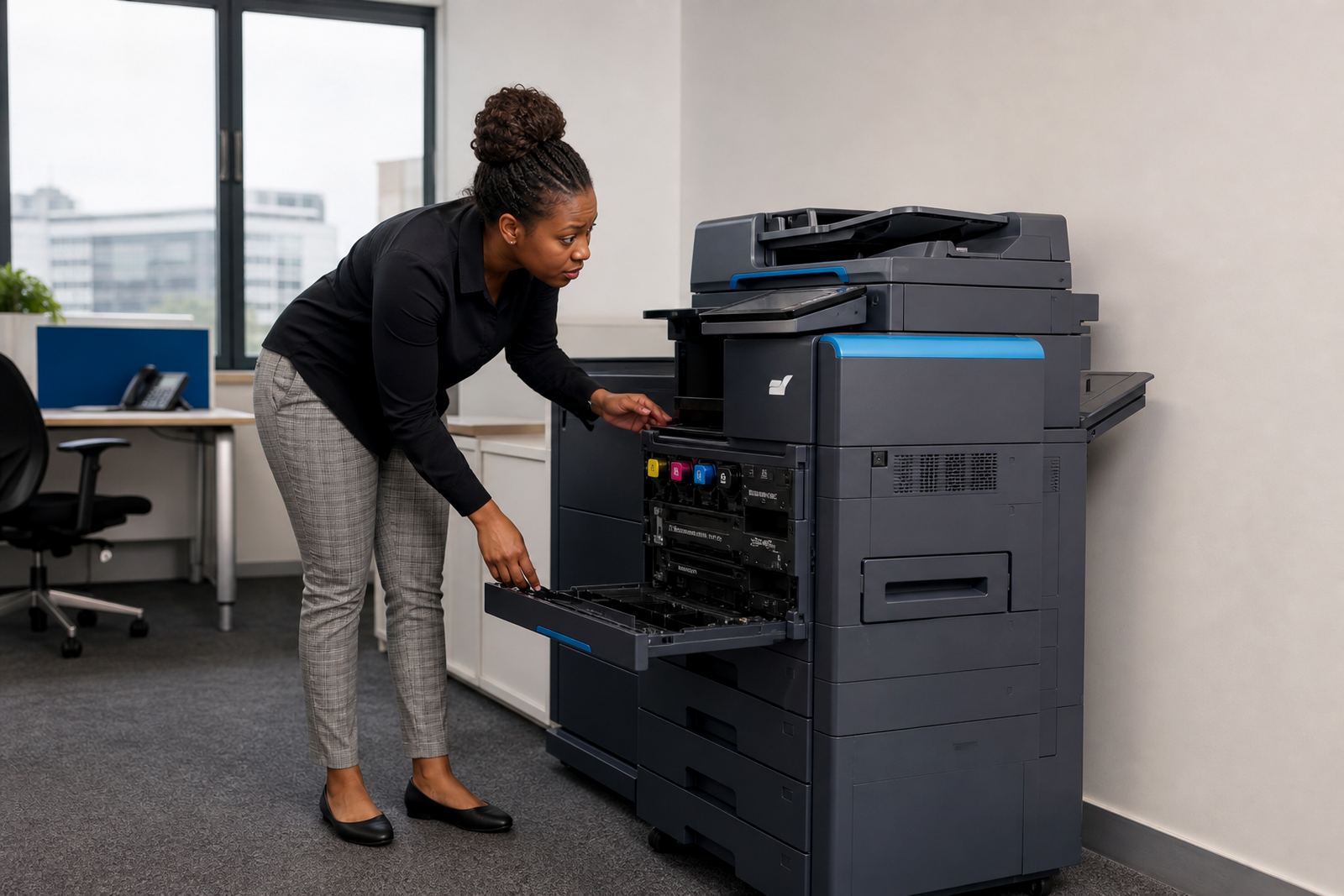
Daily user checks are not technical work, they are the first filter. A staff member who opens the paper tray, checks the display and looks at the last copy or scan can usually tell whether the issue is a simple jam, a low consumable warning or a network problem.
In offices using managed print plans, this matters because metre billing and toner supply both depend on clean information. If the machine is actually working but someone has selected the wrong tray or paper size, the service call becomes a detour, and the office still sits with the same pile of unfinished work.
Paper path checks that catch the common snags
Most day to day copier interruptions start with paper handling. Humidity in Gauteng, especially around Midrand and Sandton, can make paper curl a little, while coastal areas like Durban may show more sticking at the tray edges. Staff do not need to strip the machine down, only to check what is easy to see.
- Confirm the tray matches the paper size on the screen.
- Check for bent corners, torn sheets or loose reams.
- Make sure the paper guides sit snug, not pinched.
- Look for a sheet left partly inside the feed path.
- Close every cover fully before trying again.
If the tray keeps showing empty, even after a refill, the issue may be a sensor or a setting rather than the paper itself. That is useful detail for the service note.
What the display is trying to tell you
The screen on a multifunction machine usually gives a better clue than the office hears over the corridor. Messages about toner, drum life, cover open, jam location or authentication failure point in different directions, and those details help separate a consumable issue from a mechanical one.
For a shared A4 or A3 device, staff should note the exact wording, not a summary. A message that says a tray is open is different from one that says a job is held for secure release. One is a physical check, the other may need a PIN, login or user reset.
- Read the message exactly as shown.
- Note whether copying, scanning or printing is affected.
- Check if the fault appears on one function only.
- See whether all users have the same problem.
Scan to message and secure print need a quick user test
When printing still works but scanning does not, the machine may not be broken at all. Scan to message can fail because of the wrong address book entry, a full destination field or a login issue at the device. Secure print can stall when a user forgets the release step, or enters the wrong code on a busy morning.
A simple test from one known account helps separate a user setting from a wider machine fault. If one person can print and another cannot, that points to permissions, driver settings or a queue issue. If nobody can release a secure job, the machine settings need attention before the papers start stacking up.
A Midrand office example from the front counter
A legal practice in Halfway House called about a copier that seemed dead after lunch. The display was showing a tray mismatch, while a staff member had loaded A4 paper into a tray still set for A3. The machine was fine, but the job queue had filled with failed attempts and confusion followed.
Once the tray setting was corrected and the queue cleared, printing resumed without any parts being replaced. That sort of example is common in busy offices across Johannesburg and Pretoria, where several people use the same machine and no one wants to own the error. A brief check at the screen and tray would have saved the call.
Details worth sending with the service note
When the office does need support, a clear note helps the field technician prepare. The best service notes are plain and specific, with no guesses about the cause. They should explain what the user saw, which function failed and whether the issue started after paper was changed, a power interruption or a new login setting.
- Machine location in the office or branch.
- Whether the fault affects copy, print or scan.
- The exact display message, if there is one.
- Paper size, tray and whether colour or mono work.
- Any recent move, user change or network adjustment.
That level of detail suits managed print plans because it helps with metre reading support, toner supply checks and end term swaps later on. It also reduces repeat visits for something that turned out to be a tray setting or user profile issue.
What daily checking changes for the whole fleet
Daily user checks train the office to notice patterns. A machine that jams every Friday, a scan that fails only on one workstation, or a toner warning that appears too early all point to a fixed cause. Over time, that makes fleet review easier and keeps the rental machine in step with the real workload.
For schools, practices and growing offices, the habit is the same. One person checks the tray, one person reads the screen, and one person logs the issue with enough detail to be useful. That small discipline keeps the team moving and the copier from becoming a mystery every afternoon.