
When the same page keeps folding inside the machine
A jam that appears once in a while often points to paper handling. A stack stored in a warm office can curl, and in coastal humidity paper may pick up enough moisture to feed badly. In a busy Midrand office, the same ream might move from a cold storeroom to a hot reception area and start sticking at the edges.
Check whether the paper is loaded square in the tray, with the guides touching the stack lightly and not squeezing it. Too much paper in the tray, mixed paper sizes, or torn sheets hidden near the bottom can all cause the feed rollers to pull two pages at once.
- Remove any damaged sheets from the tray.
- Fan the stack before loading it again.
- Keep the paper guides snug, not tight.
- Use the size marked for that tray, not a close guess.
Tray settings that do not match the paper in use
Many office jams begin with a simple mismatch between the tray setting and the paper sitting in it. If the device expects A4 but the tray is loaded with foolscap or a mixed batch, the rollers and sensors can behave as if the paper is missing or skewed. The result is a feed fault that looks bigger than it is.
For managed print plans, this is one of the first things our team looks at during user handover or a fleet review. Staff members often move paper between trays to keep work going, then forget that the machine still thinks a different size is loaded. That small mismatch can trigger repeated stops around the same place in the path.
- Check the tray size indicator before printing.
- Confirm whether the device is set for A4 or A3.
- Keep specialty media separate from standard office paper.
- Do not force a tray if it feels stuck or uneven.
Rollers that have gone smooth with age
Feed rollers grip each sheet and pull it through the first part of the path. With time, dust, paper coating and heat can reduce that grip. When rollers slip, the page enters crooked or pauses at the wrong point, and the machine reports a jam even where the real issue is worn pickup parts.
This is common in offices that print daily reports, labels or long document runs. The machine may work on a single page but struggle on a larger batch. If you notice more than one person reporting the same fault on the same tray, the rollers may need cleaning or replacement during servicing.
Safe user checks are limited here. Wipe away loose dust around the tray opening with a dry cloth, then leave deeper cleaning to a technician. Never use water on the roller area, and do not pull at springs or small levers inside the feed section.
Tiny scraps and bent corners create bigger trouble
Not every jam comes from a major blockage. A torn corner, a staple remnant, or a small offcut from a previous job can sit inside the paper path and catch the next sheet. The machine may clear one jam and then stop again because the hidden piece has shifted but not come free.
When a sheet is removed roughly, another fragment can remain behind the side cover or near the duplex path. That is why repeated jams after the first clear often mean there is still something inside. In a school office or medical practice, where printing is constant, these tiny leftovers build up quickly if no one checks the full path.
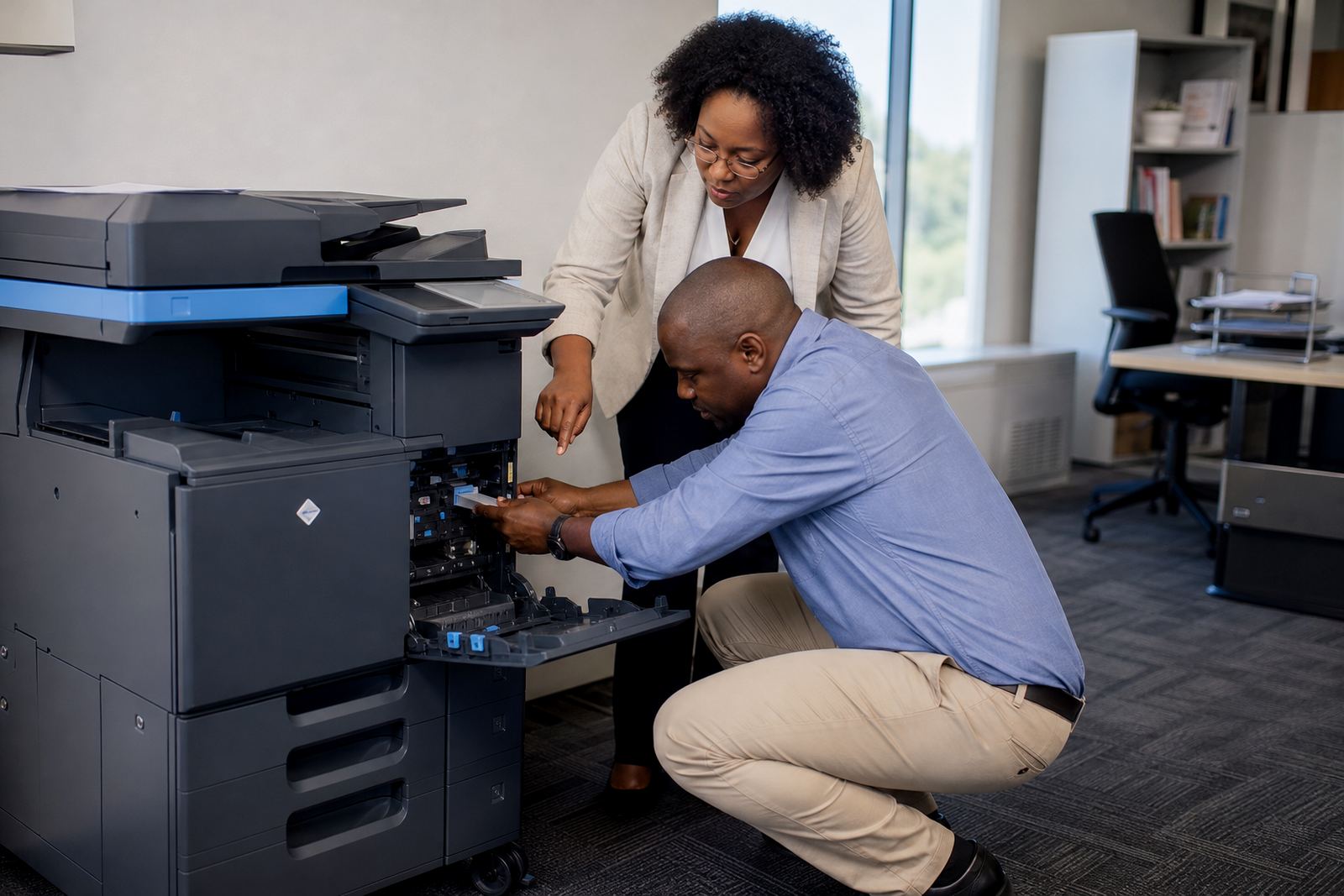
- Open only the panels shown on the display.
- Remove loose scraps you can see without reaching deep inside.
- Look for torn edges near the output area and duplex path.
- Close every cover properly before testing again.
Humidity, rough paper and heavy stacks can all slow a feed
Paper choice matters more than many offices realise. Thin stock, damp stock or sheets with damaged edges bend too easily as they move through the machine. In places like Durban or Cape Town, coastal moisture can make a box of paper behave very differently from one stored in a dry interior office.
Large batches also need a little care. If the stack is overloaded, the top sheets may drag against one another. If the paper has been cut poorly, the edge may be uneven and the feed path may catch. For mono and colour machines alike, this creates the same result: a stop, a warning, and a queue at the printer.
A practical office habit is to open only the paper you need for that day and keep the rest sealed until later. If a tray starts jamming only with one batch of paper, the paper itself may be the problem, not the machine.
When a jam is more than a jam
Some faults look like paper trouble but point to a deeper issue. A damaged separation pad, a warped tray, or a broken sensor flag can all make a healthy sheet stop in the wrong place. In that case the machine may clear for a while, then fail again without warning.
That is when a service visit makes sense. Our field team checks the feed path, tray alignment, rollers and any worn parts that affect the movement of paper. For offices with managed print plans, we also look at whether the device size still fits the actual work, because a small A4 unit can struggle in a department that now prints more A3 sets, forms or training packs.
- If the same jam repeats after careful clearing, stop forcing the paper.
- Check whether multiple trays are failing or only one.
- Note the display message before closing the cover.
- Keep the machine available for a technician, rather than running it through repeated faults.
A Midrand office example that looks ordinary at first
At a Halfway House office with staff in Johannesburg and Pretoria, a copier kept stopping on the second page of a document pack. The first thought was a major fault, but the issue came down to a tray loaded with mixed paper sizes and one curled batch left after a busy morning of printing. The team had also been switching between scan-to-message jobs and letterhead printing, which meant the tray setting no longer matched the paper inside it.
Once the paper was sorted, the guides were reset and the old sheets were removed, the jam stopped repeating. That is often how these issues go in real offices. The fix is not dramatic, just careful. A clean tray, the right size setting and a proper look inside the path usually solve more than people expect.
If the same fault keeps returning, it is worth checking the machine’s maintenance history, the paper stock being used and whether the unit still suits the workload. A good service plan should keep that part steady, so staff can print without chasing the same blockage all week.