
Start with the documents you scan every week
Before any settings are loaded, list the papers that move through your office most often. That usually includes signed forms, invoices, medical notes, tender packs, delivery notes and staff records. If the team scans all of those in one way, files end up scattered and naming gets messy. A proper plan keeps each type in its own path from the start.
Work out who scans daily, who only scans now and then, and who needs a private destination. In a mixed office, one person may scan to a shared folder, while another needs scan-to-send us a message for a quick send to a client. That split decides how the buttons, permissions and presets should be set up.
- List the top five document types by volume.
- Decide which scans go to message and which go to folders.
- Set file names that show date, department or matter number.
- Choose PDF for most records and image files only where needed.
Build the scan routes before the machine goes live
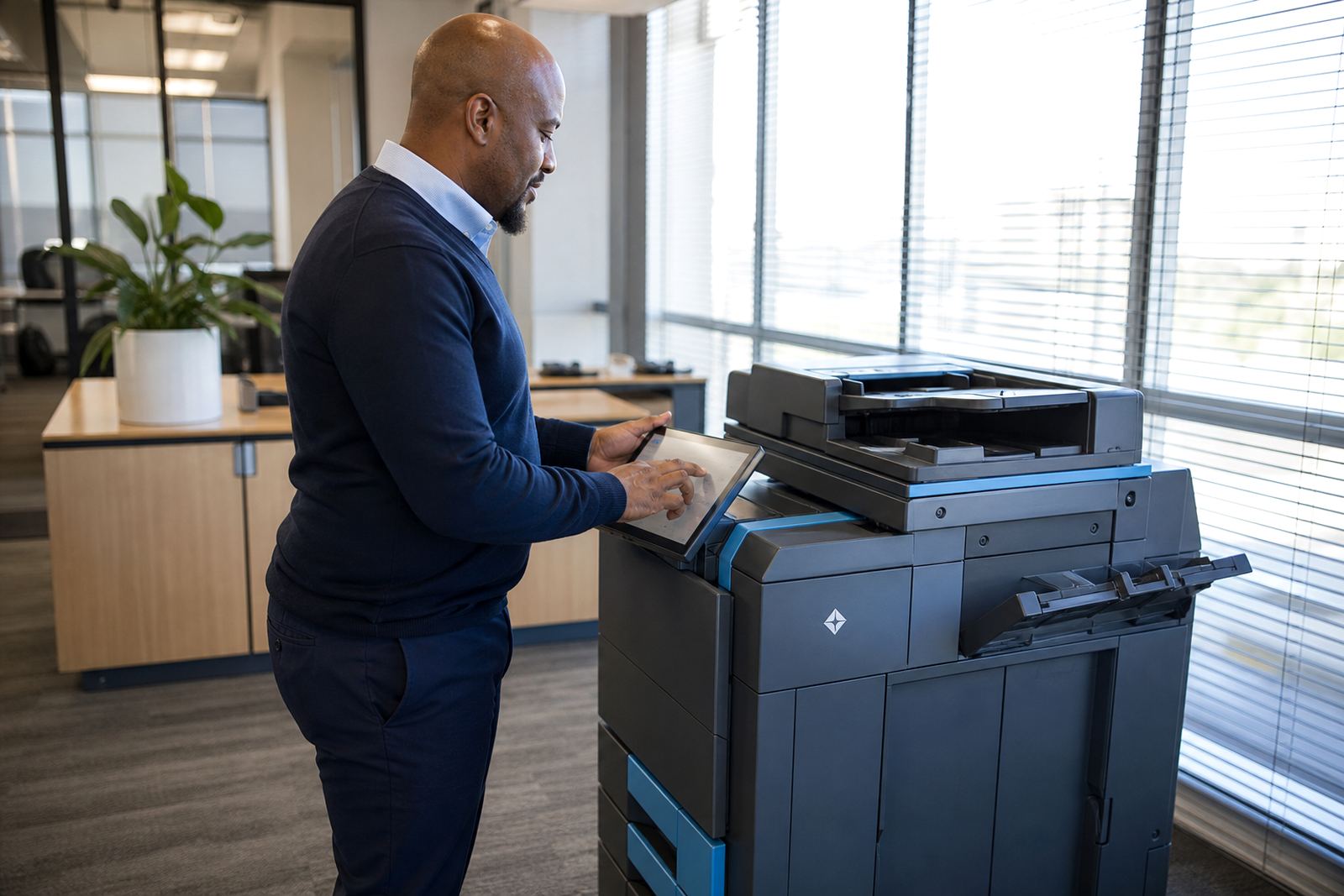
Once the document flow is clear, the machine can be set up with the right scan destinations. Multifunction A4 and A3 devices can send scans to message, shared folders or secure locations on your network. The settings should match how your office already files work, not force people into a new habit that slows them down.
Good setup also covers contact details inside the machine, address books for regular recipients, and any folders used by teams in Johannesburg, Pretoria or a regional branch. If scan destinations are not tested properly, staff may save files to the wrong place or keep resending the same page because the first copy never arrived where it should.
- Create scan buttons for common uses such as invoice, HR, and general admin.
- Keep the address book clean with current message contacts only.
- Use folder names that are easy to recognise at a glance.
- Set black and white or colour scan options according to the document type.
Choose settings that suit the work, not just the machine
Not every office needs the same scan quality or file size. A law office may want sharper text capture, while a school may prefer faster scanning for large batches of permission slips. In a practice or admin room, the sweet spot is usually clear enough for records, without creating huge files that clog inboxes and storage.
Resolution, file format and colour use all affect how the workflow feels in daily use. Scan too large and staff struggle to store or forward files. Scan too small and the text can be hard to read later. The aim is a setting that holds detail without wasting space or time.
- Use colour only where the original needs it.
- Set a default resolution that suits records, not photos.
- Keep duplex scanning on where double-sided documents are common.
- Test page naming so files sort in the right order.
Lock down access without making the machine awkward
Secure print and controlled scan access help where several people use the same device. Staff can release their own print jobs at the machine, and sensitive scans can be limited to the right user or folder. That matters in busy offices where client files, payroll papers and internal notes all pass through the same tray.
A sensible workflow keeps the device easy enough for daily work but tight enough to avoid the wrong person opening the wrong document. User codes, department presets and folder permissions all play a part. If the office runs across more than one branch, the same rules should be copied across machines so staff do not have to learn a different habit each time.
- Assign scan permissions by role where needed.
- Set secure print for confidential output.
- Review shared folders so old routing is removed.
- Keep a short user handover note near the device.
Prepare the network and message path with care
Scan-to-message depends on a stable network path and the right mail settings. The machine must talk to the office network, the folder system and the mail server without confusion. If a device is relocated between branches or moved within the building, those details need checking again, because a small change can break a working route.
Halfway House offices often mix older systems with newer ones, so a scan plan should fit what is already in place. That may include a direct message path for quick sends, or a shared network folder for records that stay in-house. Either way, the setup should be documented so the team knows what to use when the pressure is on.
- Confirm the scan destination path and folder permissions.
- Check message sender settings and address limits.
- Test large files and multi-page files separately.
- Record the setup details for future machine swaps.
Keep the routine alive after the first setup
A scan workflow only stays useful if people use it the same way each week. Staff move, departments change and new document types appear, so the setup needs occasional review. Metre readings, service checks and toner supply all sit alongside the scan side of the machine because any downtime interrupts the whole office routine.
When a fleet review is done, the scan process should be part of that check. If a branch in Sandton, Bloemfontein or Cape Town uses different file names or different folder paths, the system becomes harder to manage. A clean standard keeps training shorter and handovers easier when machines are swapped or moved.
- Review scan folders when staff roles change.
- Update preset buttons after any relocation.
- Check that secure print and scan rules still match office practice.
- Keep the machine log clear for servicing and handover work.
A short checklist for day-one capture
If the goal is reliable document capture from day one, keep the checklist practical. Start with the users, then the destinations, then the security settings and network path. That order avoids a lot of backtracking, especially in offices that need daily scanning for admin, client files or school records.
Our team sets up rental copiers and multifunction printers with the scan routines already mapped into the machine, so the office does not waste time figuring it out later. The cleaner the first setup, the less cleaning up is needed once the work starts flowing.
- List users and departments that scan most often.
- Decide between message, folder, or both.
- Choose file type, file name and colour rules.
- Test secure print, scan access and folder routing.