
Clear the landing spot before the machine arrives
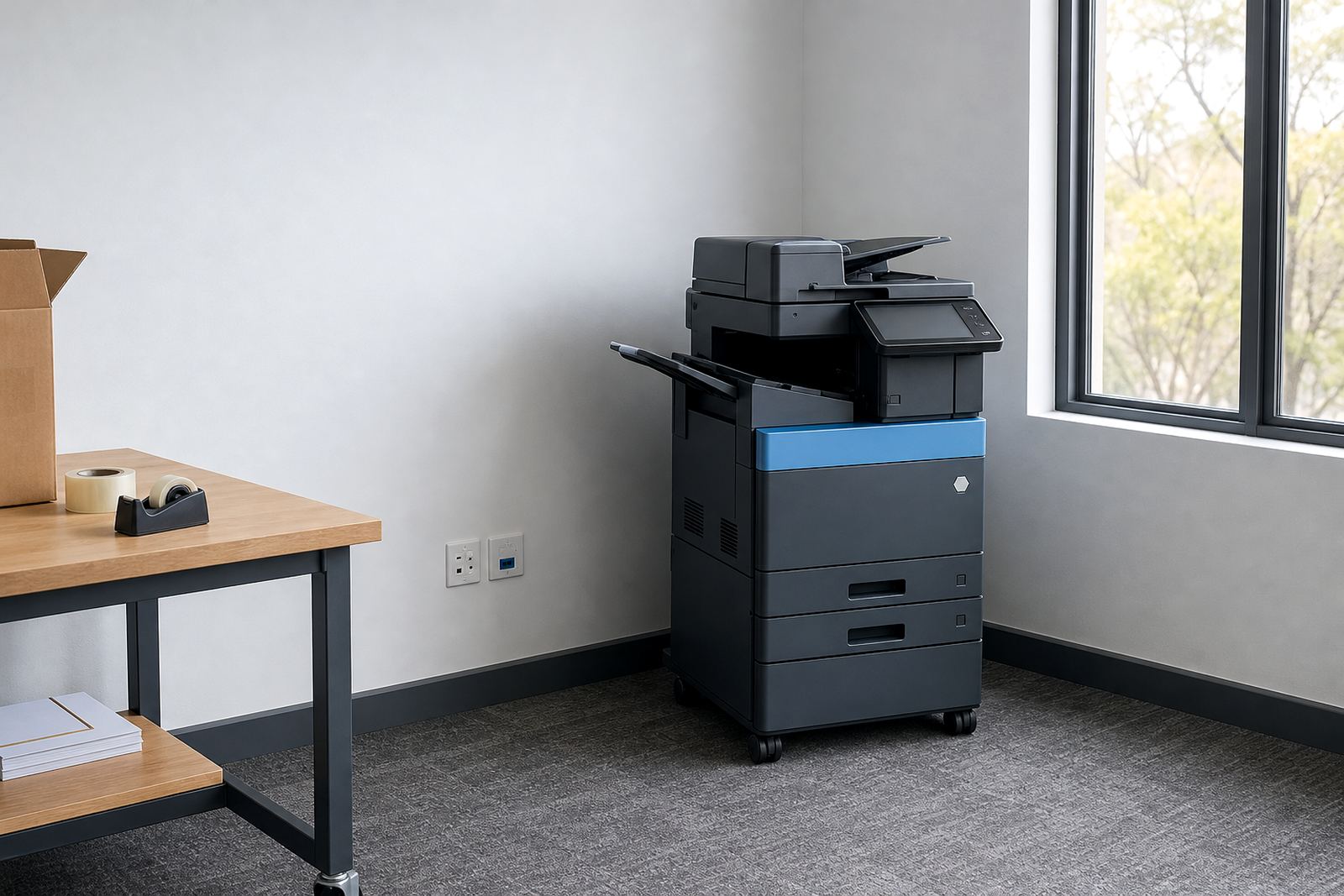
The first task is physical space. A multifunction printer needs a level surface or a clear floor area with room to open trays, swing doors and lift a scanner lid without knocking into a wall or cupboard. Leave space for paper stock, spare toner and a technician to move around the unit with a hand truck.
Check the route from the entrance to the final position. Narrow passageways, steps, loose mats and tight door frames can slow the move and raise the risk of scuffs. In office blocks across Midrand, Sandton and central Johannesburg, lifts and loading bays often need to be booked in advance so the machine can move in without a delay at reception.
- Measure the final space in metres, not rough estimates.
- Check that doors and corridors allow the machine to pass upright.
- Remove boxes, bins and loose cable runs from the path.
- Mark the exact position for the printer and any side table.
Confirm power, data and the right socket position
Most office printers need a normal mains point close enough for a tidy cable run. The plug should not stretch across a walkway or sit under a stack of files. If the machine will scan to message, print over the network or hold secure print jobs, the technician will also need access to the office network point or Wi-Fi details that your IT team controls.
In shared offices and schools, socket placement matters more than people expect. A printer placed too far from the wall can become a trip hazard, while a socket hidden behind furniture makes servicing awkward. If the room has other equipment, make sure there is enough capacity on the circuit and that the plug point is not already doing too much work.
- Confirm the nearest power point and its position.
- Make network details available to the staff member who handles access.
- Clear space for a printer cable, network cable and a small service gap.
- Tell the team whether the device will sit on a table or stand on the floor.
Decide who will handle printer access on the day
One person should be ready to answer the basic questions during installation. That person does not need to be technical, but they should know where the printer will sit, which users need access and who signs off on the final placement. A managed print setup is smoother when one contact can confirm the office name, floor, suite number and department layout.
It also helps to choose someone who understands how the office works. If finance needs metre readings, if reception controls visitors or if a practice manager wants secure print on the front counter side, those details matter before the machine is switched on. A short walk-through avoids later changes to trays, user permissions or scan destinations.
- Nominate one local contact for the installation visit.
- Share the room name, floor and access details.
- Note which staff members need printing, copying and scanning access.
- Point out any areas where confidential pages must stay protected.
Paper, trays and the habits your office already has
Before the unit arrives, look at the paper your office actually uses. Many teams run a mix of A4 and A3, with mono work for forms and colour for presentations, notices or client packs. If the office uses heavy paper, pre-printed stationery or a particular letterhead, those details affect tray settings and the way the device is loaded.
This is also a good time to decide how staff will collect printouts. Some offices want output trays close to reception, others need the machine tucked into a print room where documents are less visible. If secure print will be used, staff should know how to release jobs with a code or card, and who will explain that process to the rest of the team.
- Check whether the office uses A4 only or also A3.
- List the paper weights and special stock used most often.
- Set aside a clean place for reams, envelopes and spare media.
- Decide where confidential printouts will be collected.
Scan-to-message, addresses and folder names should be ready first
Many installation visits run more smoothly when scan destinations are already prepared. If the office wants scan-to-message, the IT contact should know which addresses receive invoices, forms or signed pages. If scans must land in a shared folder, that folder should already exist and the staff member handling it should know the naming rules.
For schools, accounting firms, medical rooms and property offices, scanned documents often follow a pattern. Reception may need to scan ID copies, a practice may need patient forms, or a branch office may need signed contract pages filed by matter or client name. When those labels are clear before the machine arrives, setup is cleaner and less repetitive.
- Prepare the email addresses or shared folders that will receive scans.
- Agree on file names for daily use, not just for rare jobs.
- Tell the technician which users need scan rights.
- Check whether any folders need extra access control.
Metre readings, billing and the end of the first month
Managed print plans usually depend on metre-based billing, so someone should know where the machine starts. Record the opening metre readings once the device is installed and keep them with the rental file. That record helps with monthly billing, toner control and any later discussion about usage across different departments.
It also helps to explain how the office wants to handle service calls and future changes. Some teams want end-of-term swaps when the machine no longer suits the volume, while others need a machine relocation if the office moves within the building. A clean handover now makes those later steps easier and keeps the service history in one place.
- Keep the opening metre reading with the contract file.
- Show one person how to find the metre on the display.
- Note who will report breakdowns or toner concerns.
- Keep a record of any special settings fitted on the day.